
MEXC App Download: Frequently Asked Questions
1. Does MEXC have an official app?
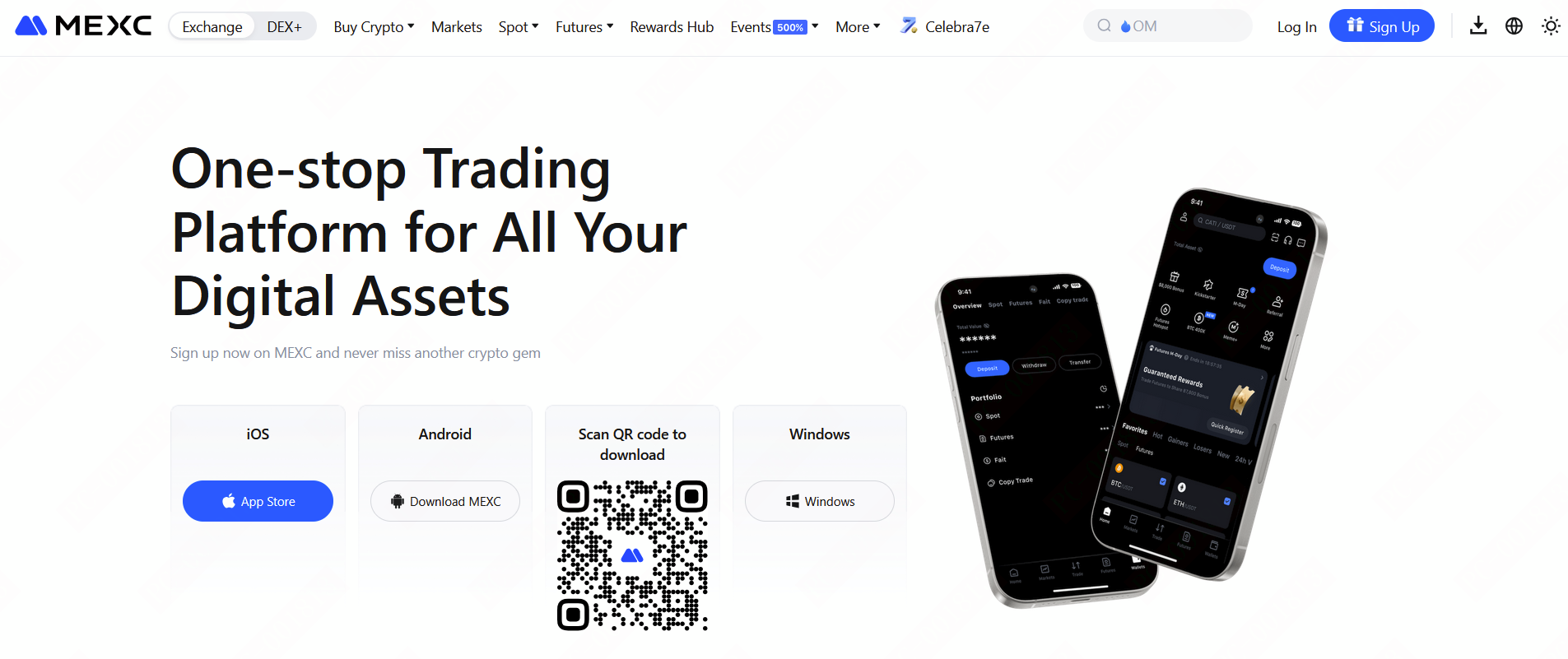
Yes, MEXC offers an official mobile app for both iOS and Android systems. You can download the app via the official link below: https://www.mexc.com/download, or through the Apple App Store or Google Play Store.
To mitigate risks such as malware or fraud, it is essential to only download the MEXC App from authorized channels. To ensure you are downloading the official version, we recommend the following steps:
Download from Official Sources: Always download the MEXC App from the official MEXC website or authorized app stores. Avoid using third-party sources.
Verify Developer Information: In the app store, confirm that the developer is listed as "MEXC Fintech, Inc." to ensure that you are downloading the legitimate and authorized app.
2. What should I do if the MEXC App is unavailable in the app store?
2.1 Use the Web Version
If you are unable to download the MEXC App or prefer not to use it, you can still access MEXC services through our web platform. The web version is accessible via both mobile and desktop browsers.
Official Website: https://www.mexc.com
2.2 iOS Download Guide
2.2.1 If you cannot find the MEXC App in the App Store, it means the app is currently not available in your region. We recommend the following:
You can try switching to another region's Apple ID. Please refer to the "MEXC App Download Guide" for step-by-step instructions on downloading and sign-up.
2.2.2 iOS 12 or Later is Required

If you are redirected to the App Store and see the message "This application requires iOS 12.0 or later," it means you need to try upgrading your device's operating system. For upgrade instructions, please refer to: https://support.apple.com/118575
If you are using an iPhone 5 or an earlier model:
- If you have an Android phone, you can try using the Android version of the MEXC App.
- If you do not have an Android phone, you can try using the web version of MEXC: https://www.mexc.com/
2.3 Android Download Guide
2.3.1 Android Device Installation Guide
2.3.1 If you are using an Android device and are unable to download the app via Google Play, please visit https://www.mexc.com/download for the Android installation guide.
2.3.2 Huawei Device Installation Guide
If you encounter prompts such as "Malicious app" or "Potential risk" during installation, this is typically caused by a false positive from the system security feature. You may try the following solutions:
Method 1: Offline installation. Temporarily disable the network connection or enable Airplane Mode, then reinstall the downloaded installation package.
Method 2: Adjust security settings. Go to Settings → Apps → Pure Mode, tap the More menu in the top-right corner, and disable Enhanced Protection or exit Pure Mode directly.
Note: The exact menu path may vary slightly depending on the device model or system version. Please follow the on-screen options accordingly.
Method 3: Use the backup download link. If the above methods do not resolve the issue, download the latest installation package via the official alternative download link provided by MEXC.
2.3.3 Google Play Store Issues
If the MEXC App is not available for download in your region, you can try signing up for a new Google account or switching the region of your existing account. Guide to changing your Google account region: https://support.google.com/googleplay/answer/7431675
If you encounter other issues when redirected to the Google Play Store, please refer to this guide: https://support.google.com/googleplay/answer/14122894
2.3.4 Unknown Sources Installation Prompt
For security reasons, Android phones have the "Allow installation of non-Google Play apps" option disabled by default. Navigate to and open Settings, and then search for and select "Install unknown apps." Then, tap "Install unknown apps" again. Note: this option may vary by brand. Refer to the tutorial here: https://www.samsung.com/us/support/troubleshoot/TSG10001913
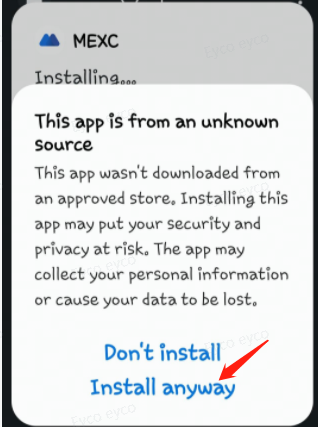
2.3.5 Risk Warning When Installing the MEXC APK
This is a normal prompt. Please make sure to download and install the APK only from the official MEXC website: https://www.mexc.com/download.
2.3.6 Two MEXC Apps Appear on Android Home Screen
Because the MEXC installation packages from Google Play and the official website use different package names, they cannot overwrite each other during installation. As a result, some users may see two MEXC Apps on their Android home screen at the same time, as shown in the image below:
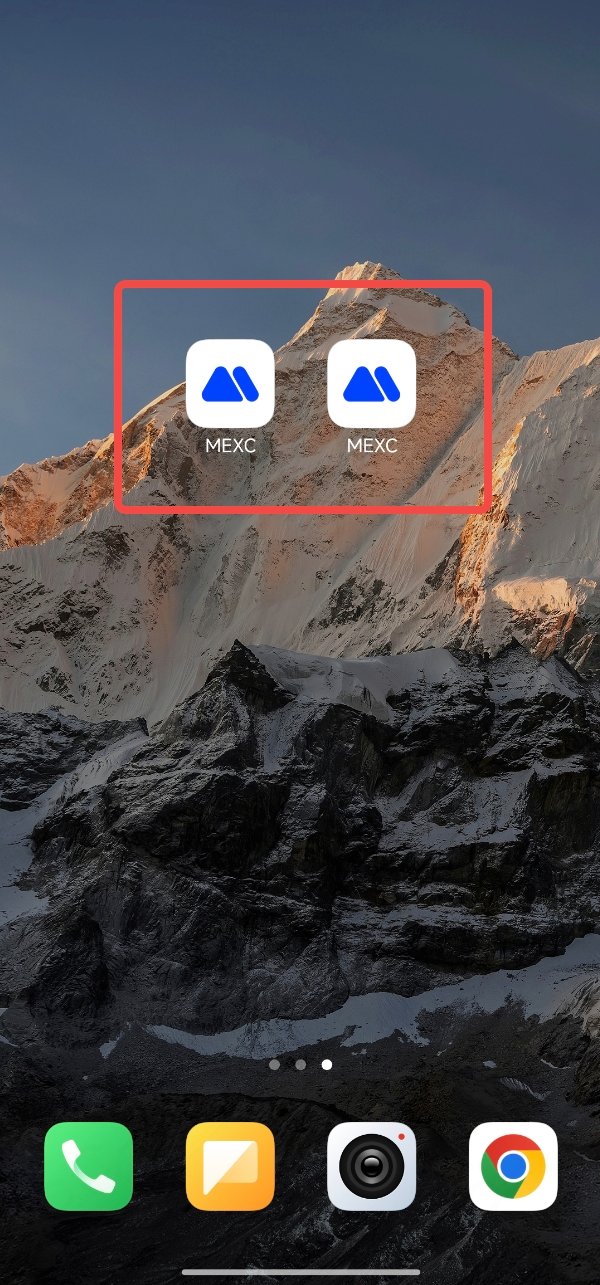
To resolve this issue, MEXC is preparing to release a new installation package for the app version that can be downloaded from the official website. This update will unify the package names of the website and Google Play versions, thereby preventing two MEXC apps from appearing simultaneously on Android home screens.
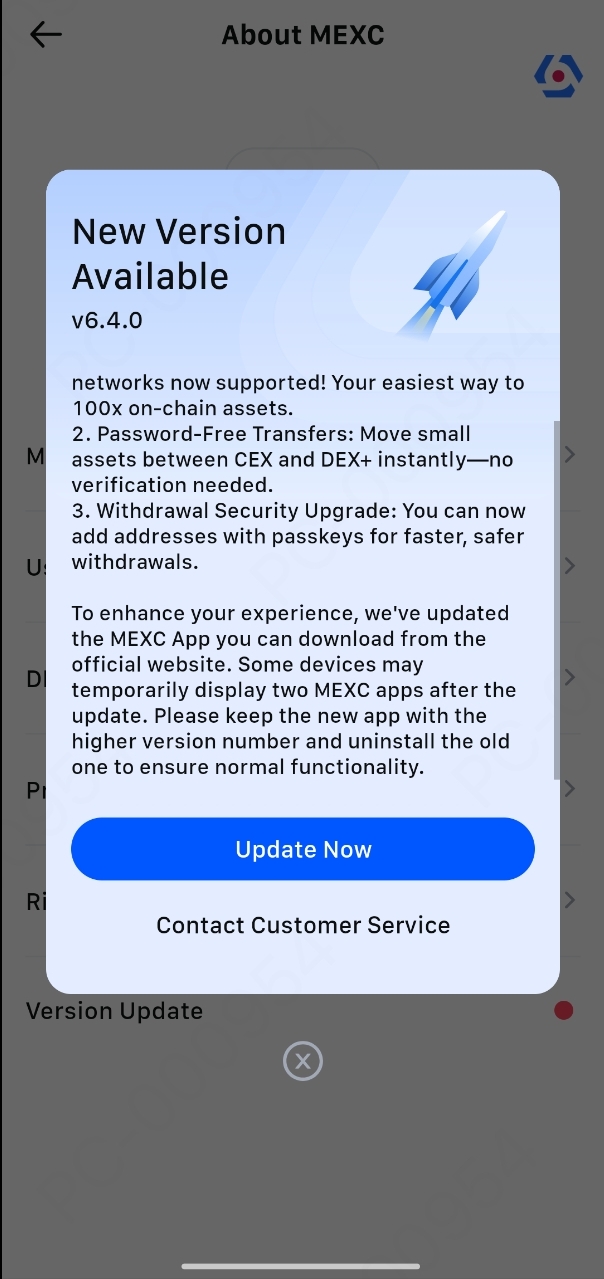
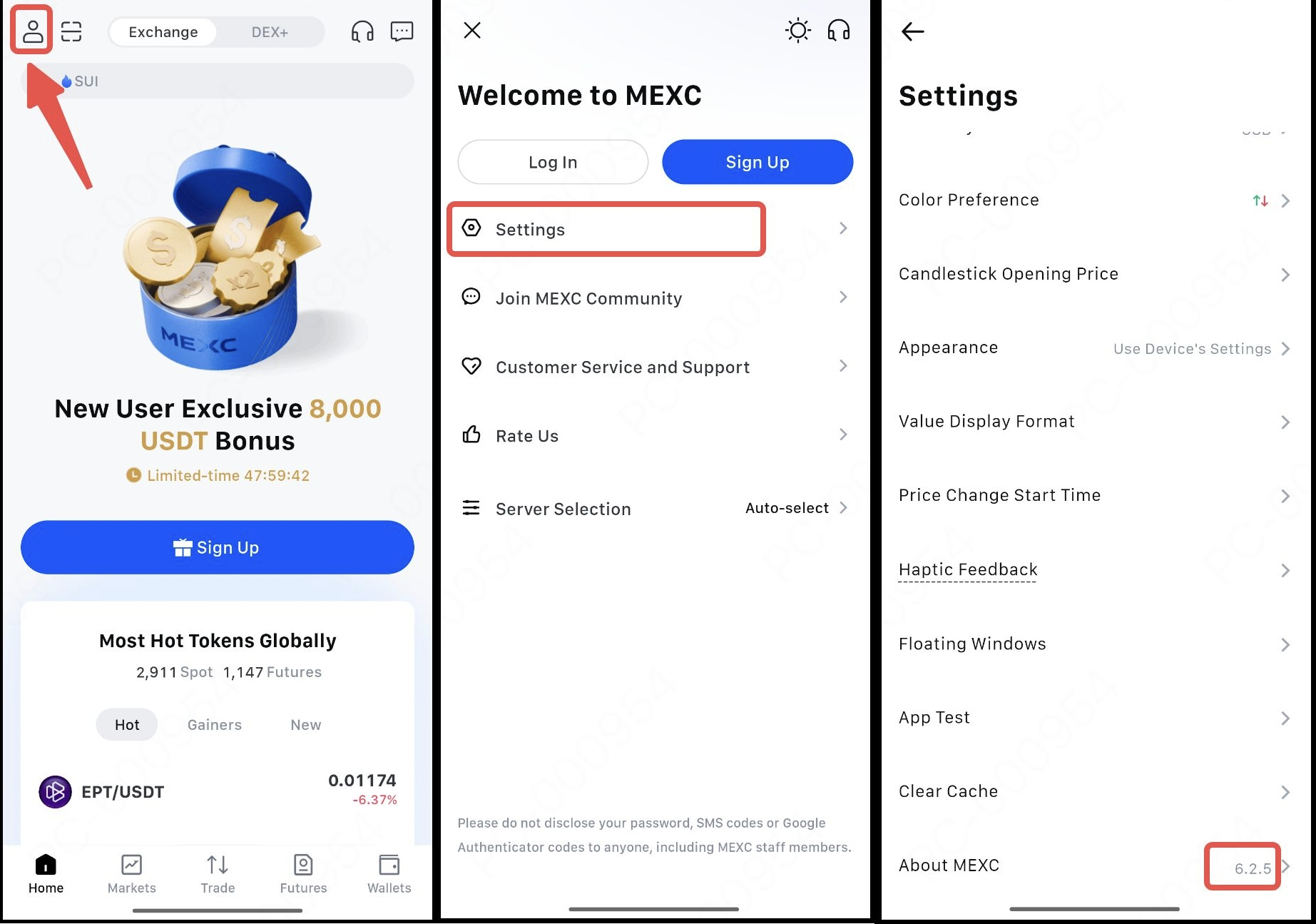
If you encounter this issue, please open both MEXC apps on your home screen one by one, tap your user icon, go to Settings, scroll down to the bottom, and tap About MEXC to check the version number as shown in the image below. Keep the MEXC app with the higher version number and uninstall the one with the lower version number.
Note: You will not be automatically logged in to the newly-installed MEXC app.
3. What to do if the MEXC App fails to install or download is interrupted
If you are experiencing issues with installing the MEXC App, or if the download keeps failing or being interrupted, the problem may be caused by one of the following:
Network Issues: Ensure your device is connected to a stable Wi-Fi or mobile data network. A weak or unstable connection may prevent the app from downloading properly.
Insufficient Storage: Check your device's storage space. If your device is running low on storage, delete unnecessary files or apps to free up space before attempting to install again.
Device Compatibility: Confirm that your mobile device's operating system meets the minimum requirements for the MEXC App. For iOS devices, ensure your system version aligns with the app’s requirements.
4. What to do if the MEXC App fails to open or launch after installation
If you are experiencing difficulties opening or launching the MEXC App after installation, please consider the following steps:
Restart Your Device: A simple device restart may help resolve any temporary issues preventing the app from launching.
Update Your Operating System: Ensure that your device's operating system is up to date. Compatibility with the latest version of the MEXC App may require the most current system version.
Clear Cache and Data: Cache-related issues can affect app performance. Try clearing the cache or uninstalling and reinstalling the MEXC App to resolve any potential conflicts.
5. What should I do if the MEXC App is lagging or unresponsive?
If you experience issues such as screen freezing, unresponsive taps, or slow loading while using the MEXC App, this is usually related to network connection quality or server status. You may first follow the steps below to perform basic troubleshooting:
5.1 Perform a network check
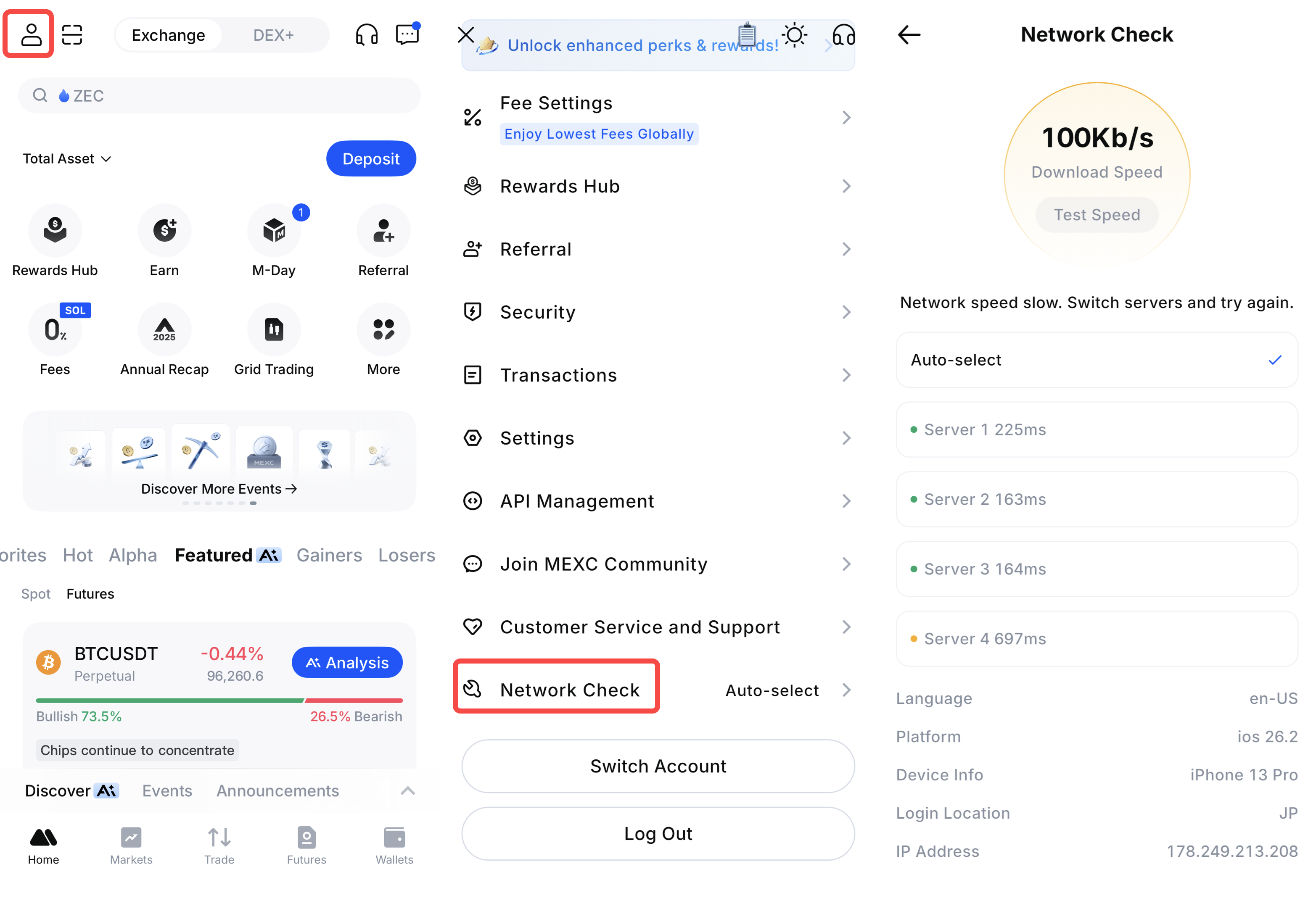
In the MEXC App, tap the profile icon on the homepage, then select Network Check. Based on the test results, take the corresponding actions:
Slow network speed (shown as red or orange on the report): This indicates that the current network connection is unstable or slow. Try switching to a different network environment:
- Switch from mobile data (4G/5G) to a stable Wi-Fi network
- Connect to another reliable Wi-Fi network
- Restart the router or move to an area with better signal strength
Normal network speed (shown as green on the report): This may be caused by latency on the currently connected server. It is recommended to manually switch to a server with lower latency to continue using the app.
5.2 Contact Customer Service
If the issue persists after completing the above network checks and switching networks or servers, please prepare the following information and contact MEXC Customer Service for further investigation and assistance:
- Time the issue occurred: Please provide the specific date and approximate time when the issue happened.
- Screenshots or screen recordings: Provide screenshots or screen recordings showing the lag, freeze, or crash.
- Affected page or feature: Specify where the issue occurred, such as the Deposit or Withdrawal page, Spot trading page, or Futures trading page.
- Network diagnosis report: Run Network Check when the issue occurs and provide a screenshot of the results.
If you continue to experience issues, please reach out to MEXC Customer Service or join our official community for further assistance:
- Online Customer Service
- Official Telegram Channel: https://t.me/MEXCEnglish
- Email Customer Service: [email protected]