Listă de categorii
Anulare

How to Trade Futures on MEXC Web

1. What Is Futures Trading?


Futures trading is a type of cryptocurrency derivatives trading. Users do not need to directly hold digital assets. Instead, they trade Futures to speculate on price movements. Unlike Spot trading, Futures trading supports two-way trading. You can open a long position if you expect prices to rise, or a short position if you expect prices to fall. Futures trading also supports leverage, which can improve capital efficiency but also increases risk.

2. Types of Futures on MEXC


MEXC offers two main types of Futures products.

2.1 Stablecoin-Margined Futures


Stablecoin-Margined Futures use stablecoins as margin and settlement assets, including USDT-Margined and USDC-Margined Futures.
  • USDT-M Futures use USDT as both margin and settlement. With USDT, users can trade more than 800 Futures pairs.
  • USDC-M Futures use USDC as both margin and settlement. MEXC currently supports around 80 USDC-M Futures pairs.

2.2 Coin-Margined Futures


Coin-Margined Futures use the underlying asset, such as BTC or ETH, as margin and settlement. These products are suitable for users who prefer to hold specific assets long term. MEXC currently supports 10 Coin-M Futures pairs, including BTC, ETH, and XRP. MEXC Futures are known for competitive fees, with maker fees as low as 0%.

3. How to Trade Futures on the MEXC Web


3.1 Transfer Assets to the Futures Account


Before trading Futures, make sure your Futures account has sufficient funds.
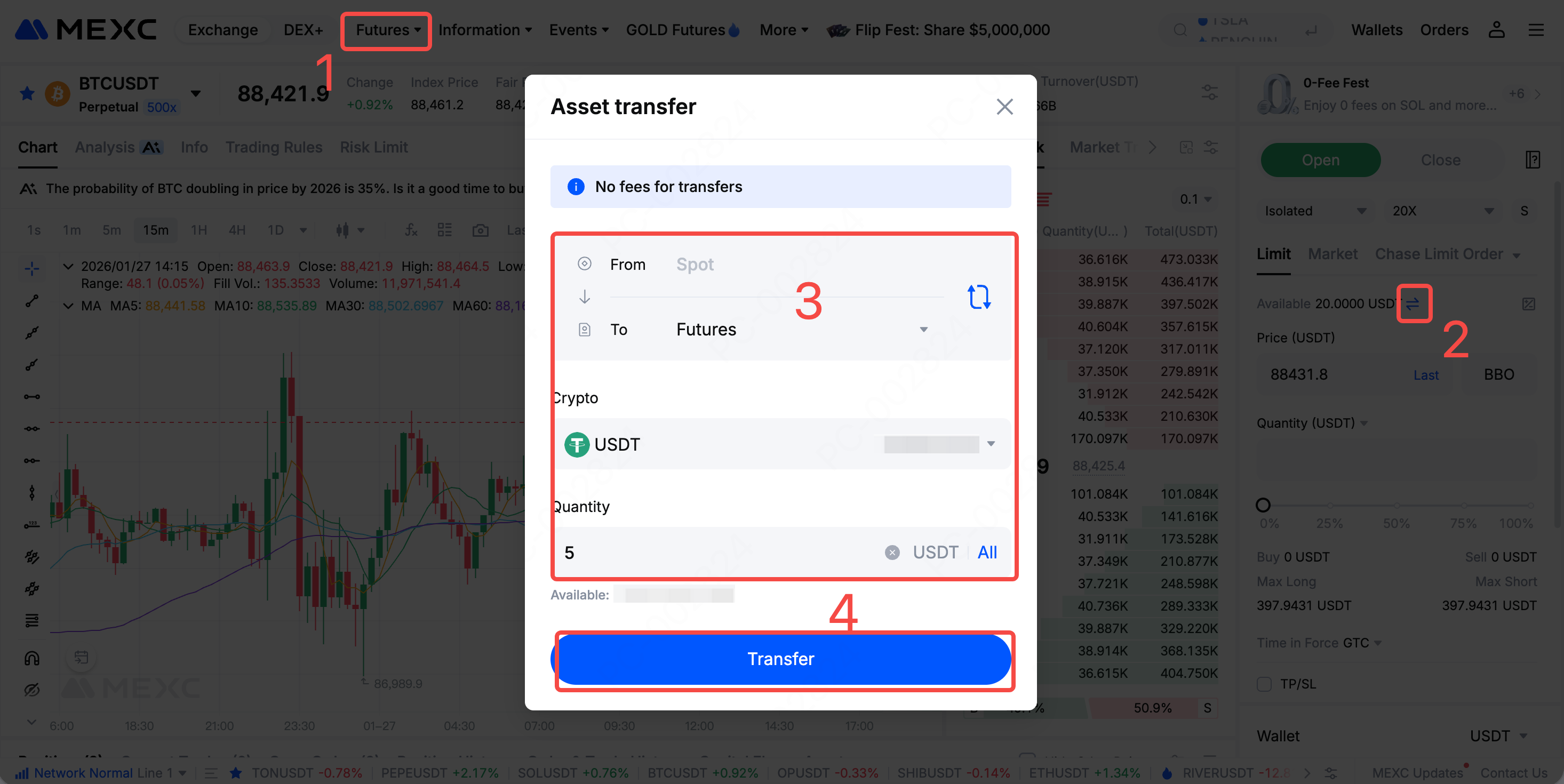
1) Open the MEXC website and log in to your account. Click Futures in the top navigation bar to enter the trading page.
2) In the order placement side panel, click the Transfer button.
3) Set the transfer direction from Spot to Futures, select the crypto to transfer, such as USDT, and enter the Quantity.
4) Click Transfer to complete the process.

3.2 Open a Futures Position


After transferring funds, you can start trading Futures. Follow the steps below to proceed.


3.2.1 Set Position Mode


Position mode is a core mechanism in Futures trading that defines how positions are opened and closed, and determines how positions are managed. There are two position modes, with the main differences below:
  • Hedge Mode allows you to hold both long and short positions for the same Futures pair at the same time.
  • One-Way Mode allows only one directional position for the same Futures pair.
If there are existing positions or open orders, position mode cannot be changed. Any change applies to all Futures pairs.

How to set the position mode in MEXC Futures trading:
1) On the Futures trading page, click the Settings icon to open Preferences.
2) Under Trading Settings, click Position Mode.
3) Select Hedge Mode or One-Way Mode.
4) Click Confirm to apply the setting.


3.2.2 Set Margin Mode


Margin mode means that users only need to provide part of the funds as margin to trade a larger Futures position. There are two margin modes, with the following differences:
  • Isolated margin calculates margin independently for each position. Liquidation of one position does not affect other positions.
  • Cross margin uses all available account balance as margin. This can help avoid liquidation of a single position, but overall risk is higher.

How to set margin mode in MEXC Futures trading:
1) In the order placement side panel, click Isolated or Cross.
2) Select the desired margin mode in the pop-up window.
3) Click Confirm to complete the setup.
Note: If you select "Apply margin mode adjustment to all futures," the setting will not take effect for Futures pairs that already have open orders or open positions. These pairs must be adjusted separately if changes are needed.


3.2.3 Set Leverage


Leverage allows users to open larger positions using a smaller amount of initial margin. Note that when trading Futures, you should choose an appropriate leverage level based on your risk tolerance. Higher leverage results in both higher potential profits and higher potential losses.

How to set leverage in MEXC Futures trading:
1) In the order placement panel on the Futures trading page, click the number next to the margin mode.
2) In the leverage window, set the leverage by entering a value, selecting a preset leverage level, or dragging the slider.
3) Click Confirm to apply the setting.
Note: If you select "Apply leverage adjustment to all futures," the setting will not take effect for Futures pairs that already have open orders or open positions. These pairs must be adjusted separately if changes are needed.


3.2.4 Set Account Asset Mode


Account asset mode allows users to use the same settlement asset or multiple assets as shared margin. There are two account asset modes, with the following differences:
Category
Single-Asset Margin
Multi-Asset Margin
Margin structure
Futures pairs with the same settlement asset share margin
Supports multiple assets as margin, converted to USD value and used as shared margin
Margin assets
Settlement asset only
Multiple supported assets
Liquidation impact
During liquidation, only the settlement asset is lost
During liquidation, multiple margin assets may be lost
Supported margin modes
Supports cross margin and isolated margin
Supports cross margin only
Supported Futures types
USDT- and USDC-M Futures
USDT- and USDC-M Futures only

How to set account asset mode in MEXC Futures trading:
1) In the order placement side panel, click the S icon.
2) In the account asset mode window, select Single-Asset Margin or Multi-Asset Margin.
3) Click Confirm to complete the setup.


3.2.5 Select an Order Type and Place an Order


MEXC provides multiple order types to support different trading strategies.
Order Type
Description
Limit Order
Place an order at a specified price. Suitable for users who require a specific entry price.
Market Order
Execute immediately at the best available market price.
Chase Limit Order
A limit order placed at the best bid or ask price. The order price dynamically adjusts with market movements until it is filled, canceled, or reaches the maximum chase distance.
Trigger Order
Set a trigger price. When the condition is met, the order is placed automatically.
Trailing Stop Order
Set a callback ratio. The order is executed automatically when price conditions are met.
Post Only
Ensures the order is placed only as a maker order, providing liquidity to the order book and not immediately matching existing orders (i.e. not acting as a taker).

How to select an order type and place an order:
1) Select the order type on the Futures trading page.
2) Enter the required parameters for the selected order type, such as price and quantity.
3) Click Open Long or Open Short to place the order.


3.3 View and Manage Orders


3.3.1 How to View Orders


If your order has not yet been triggered or filled, you can view it under Open Orders. If your order has been filled, you can view it under Positions, including position size and direction, average entry price, unrealized PNL, and estimated liquidation price.


3.3.2 How to Manage Orders


  • Automatic close: Set take-profit and stop-loss (TP/SL) levels. When the position reaches the target price, the system will automatically close the position.
  • Manual close: Select market or limit close, or use Flash Close to close the position quickly.
  • Liquidation: If your margin falls below the required maintenance level, the platform will close your position to prevent further losses.


4. Notes for Futures Trading


1) Manage Risk: While Futures trading can amplify profits, it can also amplify losses. New users are advised to start with low leverage, such as 2x to 5x, and increase leverage gradually after gaining experience.
2) Control Positions: Avoid oversized positions. It is recommended that margin used per trade does not exceed 10 to 20% of total assets. Diversify positions to reduce risk.
3) Monitor Liquidation Prices: Closely monitor the estimated liquidation price and margin rate. If the margin rate becomes too low, liquidation may be triggered, resulting in margin loss.
4) Invest Rationally: Do not use funds needed for daily living to trade Futures. Maintain a calm mindset and avoid emotional trading.
5) Practice with Demo Trading: MEXC provides a Demo Trading feature. New users can practice with simulated funds to become familiar with the process before trading with real funds.

Learn More About MEXC Futures:

How to Trade Futures on MEXC Web

1. What Is Futures Trading?


Futures trading is a type of cryptocurrency derivatives trading. Users do not need to directly hold digital assets. Instead, they trade Futures to speculate on price movements. Unlike Spot trading, Futures trading supports two-way trading. You can open a long position if you expect prices to rise, or a short position if you expect prices to fall. Futures trading also supports leverage, which can improve capital efficiency but also increases risk.

2. Types of Futures on MEXC


MEXC offers two main types of Futures products.

2.1 Stablecoin-Margined Futures


Stablecoin-Margined Futures use stablecoins as margin and settlement assets, including USDT-Margined and USDC-Margined Futures.
  • USDT-M Futures use USDT as both margin and settlement. With USDT, users can trade more than 800 Futures pairs.
  • USDC-M Futures use USDC as both margin and settlement. MEXC currently supports around 80 USDC-M Futures pairs.

2.2 Coin-Margined Futures


Coin-Margined Futures use the underlying asset, such as BTC or ETH, as margin and settlement. These products are suitable for users who prefer to hold specific assets long term. MEXC currently supports 10 Coin-M Futures pairs, including BTC, ETH, and XRP. MEXC Futures are known for competitive fees, with maker fees as low as 0%.

3. How to Trade Futures on the MEXC Web


3.1 Transfer Assets to the Futures Account


Before trading Futures, make sure your Futures account has sufficient funds.
1) Open the MEXC website and log in to your account. Click Futures in the top navigation bar to enter the trading page.
2) In the order placement side panel, click the Transfer button.
3) Set the transfer direction from Spot to Futures, select the crypto to transfer, such as USDT, and enter the Quantity.
4) Click Transfer to complete the process.


3.2 Open a Futures Position


After transferring funds, you can start trading Futures. Follow the steps below to proceed.


3.2.1 Set Position Mode


Position mode is a core mechanism in Futures trading that defines how positions are opened and closed, and determines how positions are managed. There are two position modes, with the main differences below:
  • Hedge Mode allows you to hold both long and short positions for the same Futures pair at the same time.
  • One-Way Mode allows only one directional position for the same Futures pair.
If there are existing positions or open orders, position mode cannot be changed. Any change applies to all Futures pairs.

How to set the position mode in MEXC Futures trading:
1) On the Futures trading page, click the Settings icon to open Preferences.
2) Under Trading Settings, click Position Mode.
3) Select Hedge Mode or One-Way Mode.
4) Click Confirm to apply the setting.


3.2.2 Set Margin Mode


Margin mode means that users only need to provide part of the funds as margin to trade a larger Futures position. There are two margin modes, with the following differences:
  • Isolated margin calculates margin independently for each position. Liquidation of one position does not affect other positions.
  • Cross margin uses all available account balance as margin. This can help avoid liquidation of a single position, but overall risk is higher.

How to set margin mode in MEXC Futures trading:
1) In the order placement side panel, click Isolated or Cross.
2) Select the desired margin mode in the pop-up window.
3) Click Confirm to complete the setup.
Note: If you select "Apply margin mode adjustment to all futures," the setting will not take effect for Futures pairs that already have open orders or open positions. These pairs must be adjusted separately if changes are needed.


3.2.3 Set Leverage


Leverage allows users to open larger positions using a smaller amount of initial margin. Note that when trading Futures, you should choose an appropriate leverage level based on your risk tolerance. Higher leverage results in both higher potential profits and higher potential losses.

How to set leverage in MEXC Futures trading:
1) In the order placement panel on the Futures trading page, click the number next to the margin mode.
2) In the leverage window, set the leverage by entering a value, selecting a preset leverage level, or dragging the slider.
3) Click Confirm to apply the setting.
Note: If you select "Apply leverage adjustment to all futures," the setting will not take effect for Futures pairs that already have open orders or open positions. These pairs must be adjusted separately if changes are needed.


3.2.4 Set Account Asset Mode


Account asset mode allows users to use the same settlement asset or multiple assets as shared margin. There are two account asset modes, with the following differences:
Category
Single-Asset Margin
Multi-Asset Margin
Margin structure
Futures pairs with the same settlement asset share margin
Supports multiple assets as margin, converted to USD value and used as shared margin
Margin assets
Settlement asset only
Multiple supported assets
Liquidation impact
During liquidation, only the settlement asset is lost
During liquidation, multiple margin assets may be lost
Supported margin modes
Supports cross margin and isolated margin
Supports cross margin only
Supported Futures types
USDT- and USDC-M Futures
USDT- and USDC-M Futures only

How to set account asset mode in MEXC Futures trading:
1) In the order placement side panel, click the S icon.
2) In the account asset mode window, select Single-Asset Margin or Multi-Asset Margin.
3) Click Confirm to complete the setup.


3.2.5 Select an Order Type and Place an Order


MEXC provides multiple order types to support different trading strategies.
Order Type
Description
Limit Order
Place an order at a specified price. Suitable for users who require a specific entry price.
Market Order
Execute immediately at the best available market price.
Chase Limit Order
A limit order placed at the best bid or ask price. The order price dynamically adjusts with market movements until it is filled, canceled, or reaches the maximum chase distance.
Trigger Order
Set a trigger price. When the condition is met, the order is placed automatically.
Trailing Stop Order
Set a callback ratio. The order is executed automatically when price conditions are met.
Post Only
Ensures the order is placed only as a maker order, providing liquidity to the order book and not immediately matching existing orders (i.e. not acting as a taker).

How to select an order type and place an order:
1) Select the order type on the Futures trading page.
2) Enter the required parameters for the selected order type, such as price and quantity.
3) Click Open Long or Open Short to place the order.


3.3 View and Manage Orders


3.3.1 How to View Orders


If your order has not yet been triggered or filled, you can view it under Open Orders. If your order has been filled, you can view it under Positions, including position size and direction, average entry price, unrealized PNL, and estimated liquidation price.


3.3.2 How to Manage Orders


  • Automatic close: Set take-profit and stop-loss (TP/SL) levels. When the position reaches the target price, the system will automatically close the position.
  • Manual close: Select market or limit close, or use Flash Close to close the position quickly.
  • Liquidation: If your margin falls below the required maintenance level, the platform will close your position to prevent further losses.


4. Notes for Futures Trading


1) Manage Risk: While Futures trading can amplify profits, it can also amplify losses. New users are advised to start with low leverage, such as 2x to 5x, and increase leverage gradually after gaining experience.
2) Control Positions: Avoid oversized positions. It is recommended that margin used per trade does not exceed 10 to 20% of total assets. Diversify positions to reduce risk.
3) Monitor Liquidation Prices: Closely monitor the estimated liquidation price and margin rate. If the margin rate becomes too low, liquidation may be triggered, resulting in margin loss.
4) Invest Rationally: Do not use funds needed for daily living to trade Futures. Maintain a calm mindset and avoid emotional trading.
5) Practice with Demo Trading: MEXC provides a Demo Trading feature. New users can practice with simulated funds to become familiar with the process before trading with real funds.

Learn More About MEXC Futures: