Modern applications demand high availability and the ability to scale reads without compromising performance. One of the most common strategies to achieve this is Replication. In this setup, we configured a single database to act as the leader (master) and handle all write operations, while three replicas handle read operations. In this article, we’ll walk through how to set up MySQL single-leader replication on your local machine using Docker. Once the replication is working, we’ll connect it to a Node.js application using Sequelize ORM, so that reads are routed to the replica and writes go to the master. By the end, you’ll have a working environment where you can see replication in real time Prerequisites knowledge of database replication Background knowledge of docker and docker compose Background knowledge of Nodejs and how to run a NodeJS server An Overview of what we are building Setup Setup our database servers on docker compose in the root of our project directory, create a file named docker-compose.yml with the following content to setup our mysql primary and replica databases. \ \ name: "learn-replica" volumes: mysqlMasterDatabase: mysqlSlaveDatabase: mysqlSlaveDatabaseII: mysqlSlaveDatabaseIII: networks: mysql-replication-network: services: mysql-master: image: mysql:latest container_name: mysql-master command: --server-id=1 --log-bin=ON environment: MYSQL_ROOT_PASSWORD: master MYSQL_DATABASE: replicaDb ports: - "3306:3306" volumes: - mysqlMasterDatabase:/var/lib/mysql networks: - mysql-replication-network mysql-slave: image: mysql:latest container_name: mysql-slave command: --server-id=2 --log-bin=ON environment: MYSQL_ROOT_PASSWORD: slave MYSQL_DATABASE: replicaDb MYSQL_ROOT_HOST: "%" ports: - "3307:3306" volumes: - mysqlSlaveDatabase:/var/lib/mysql depends_on: - mysql-master networks: - mysql-replication-network mysql-slaveII: image: mysql:latest container_name: mysql-slaveII command: --server-id=2 --log-bin=ON environment: MYSQL_ROOT_PASSWORD: slave MYSQL_DATABASE: replicaDb MYSQL_ROOT_HOST: "%" ports: - "3308:3306" volumes: - mysqlSlaveDatabaseII:/var/lib/mysql depends_on: - mysql-master networks: - mysql-replication-network mysql-slaveIII: image: mysql:latest container_name: mysql-slaveIII command: --server-id=3 --log-bin=ON environment: MYSQL_ROOT_PASSWORD: slave MYSQL_DATABASE: replicaDb MYSQL_ROOT_HOST: "%" ports: - "3309:3306" volumes: - mysqlSlaveDatabaseIII:/var/lib/mysql depends_on: - mysql-master networks: - mysql-replication-network In this setup, I’m creating a master database container called mysql-master and 3 replica containers called mysql-slave, mysql-slaveII and mysql-slaveIII. I won’t go too deep into the docker-compose.yml file since it’s just a basic setup, but I do want to walk you through the command line instructions used in all four services because that’s where things get interesting. \ command: --server-id=1 --log-bin=ON The --server-id option gives each MySQL server in your replication setup its own name tag. Each one has to be unique and without it, replication won’t work at all. Another cool option not included here is binlog_format=ROW. This tells MySQL how to keep track of changes before passing them along to the replicas. By default, MySQL already uses row-based replication, but you can explicitly set it to ROW to be sure or switch it to STATEMENT if you’d rather log the actual SQL statements instead of row-by-row changes. \ Run our containers on docker Now, in the terminal, we can run the following command to spin up our database containers: docker-compose up -d \ Setting Up Our Master (Primary) Server To configure our master server, we would have to first access the running instance on docker using the following command docker exec -it mysql-master bash This command opens an interactive Bash shell inside the running Docker container named mysql-master, allowing us to run commands directly inside that container. \ Now that we’re inside the container, we can access the MySQL server and start running commands. type: mysql -uroot -p This will log you into MySQL as the root user. You’ll be prompted to enter the password you set in your docker-compose.yml file. \ Next, we need to create a special user that our replicas will use to connect to the master server and pull data. Inside the MySQL prompt, run the following commands: \ CREATE USER 'repl_user'@'%' IDENTIFIED BY 'replication_pass'; GRANT REPLICATION SLAVE ON *.* TO 'repl_user'@'%'; FLUSH PRIVILEGES; Here’s what’s happening: CREATE USER makes a new MySQL user called repl_user with the password replication_pass. GRANT REPLICATION SLAVE gives this user permission to act as a replication client. FLUSH PRIVILEGES tells MySQL to reload the user permissions so they take effect immediately. \ Time to Configure the Replica (Secondary) Servers a. First, let’s access the replica containers the same way we did with the master. Run this command in your terminal for each of the replica containers: \ docker exec -it <replica_container_name> bash mysql -uroot -p <replica_container_name> should be replace with the name of the replica container you are trying to setup b. Now it’s time to tell our replica where to get its data from. While inside the replica’s MySQL shell, run the following command to configure replication using the master’s details: CHANGE REPLICATION SOURCE TO SOURCE_HOST='mysql-master', SOURCE_USER='repl_user', SOURCE_PASSWORD='replication_pass', GET_SOURCE_PUBLIC_KEY=1; With the replication settings in place, let’s fire up the replica and get it syncing with the master. Still inside the MySQL shell on the replica, run: START REPLICA; This starts the replication process. To make sure everything is working, check the replica’s status with: \ SHOW REPLICA STATUS\G; Look for Replica_IO_Running and Replica_SQL_Running — if both say Yes, congratulations! 🎉 Your replica is now successfully connected to the master and replicating data in real time. \ Testing Our Replication Setup from the Node.js App Now that our replication is successfully set up, we can configure our Node.js server to observe the real-time effect of data being replicated from the master server to the replica server whenever we write to it. We start by installing the following dependencies: \ npm i express mysql2 sequelize \ Now create a folder called src in the root directory and add the following files inside that folder connection.js, index.js and model.js. Our current directory should look like this We can now set up our connections to our master and replica server in the connection.js file as shown below \ const Sequelize = require("sequelize"); const sequelize = new Sequelize({ dialect: "mysql", replication: { write: { host: "127.0.0.1", username: "root", password: "master", database: "replicaDb", }, read: [ { host: "127.0.0.1", username: "root", password: "slave", database: "replicaDb", port: 3307 }, { host: "127.0.0.1", username: "root", password: "slave", database: "replicaDb", port: 3308 }, { host: "127.0.0.1", username: "root", password: "slave", database: "replicaDb", port: 3309 }, ], }, }); async function connectdb() { try { await sequelize.authenticate(); } catch (error) { console.error("❌ unable to connect to the follower database", error); } } connectdb(); module.exports = { sequelize, }; \ We can now create a User table in the model.js file \ const {DataTypes} = require("sequelize"); const { sequelize } = require("./connection"); const User = sequelize.define("User", { name: { type: DataTypes.STRING, allowNull: false, }, email: { type: DataTypes.STRING, unique: true, allowNull: false, }, }); module.exports = User \ and finally in our index.js file we can start our server and listen for connections on port 3000. from the code sample below, all inserts or updates will be routed by sequelize to the master server. while all read queries will be routed to the read replicas. \ const express = require("express"); const { sequelize } = require("./connection"); const User = require("./model"); const app = express(); app.use(express.json()); async function main() { await sequelize.sync({ alter: true }); app.get("/", (req, res) => { res.status(200).json({ message: "first step to setting server up", }); }); app.post("/user", async (req, res) => { const { email, name } = req.body; let newUser = await User.build({ name, email, }); // This INSERT will go to the write (master) connection newUser = newUser.save({ returning: false }); res.status(201).json({ message: "User successfully created", }); }); app.get("/user", async (req, res) => { // This SELECT query will go to one of the read replicas const users = await User.findAll(); res.status(200).json(users); }); app.listen(3000, () => { console.log("server has connected"); }); } main(); When you make a POST request to the /users endpoint, take a moment to check both the master and replica servers to observe how data is replicated in real time. Right now, we are relying on Sequelize to automatically route requests, which works for development but isn’t robust enough for a production environment. In particular, if the master node goes down, Sequelize cannot automatically redirect requests to a newly elected leader. In the next part of this series, we’ll explore strategies to handle these challengesModern applications demand high availability and the ability to scale reads without compromising performance. One of the most common strategies to achieve this is Replication. In this setup, we configured a single database to act as the leader (master) and handle all write operations, while three replicas handle read operations. In this article, we’ll walk through how to set up MySQL single-leader replication on your local machine using Docker. Once the replication is working, we’ll connect it to a Node.js application using Sequelize ORM, so that reads are routed to the replica and writes go to the master. By the end, you’ll have a working environment where you can see replication in real time Prerequisites knowledge of database replication Background knowledge of docker and docker compose Background knowledge of Nodejs and how to run a NodeJS server An Overview of what we are building Setup Setup our database servers on docker compose in the root of our project directory, create a file named docker-compose.yml with the following content to setup our mysql primary and replica databases. \ \ name: "learn-replica" volumes: mysqlMasterDatabase: mysqlSlaveDatabase: mysqlSlaveDatabaseII: mysqlSlaveDatabaseIII: networks: mysql-replication-network: services: mysql-master: image: mysql:latest container_name: mysql-master command: --server-id=1 --log-bin=ON environment: MYSQL_ROOT_PASSWORD: master MYSQL_DATABASE: replicaDb ports: - "3306:3306" volumes: - mysqlMasterDatabase:/var/lib/mysql networks: - mysql-replication-network mysql-slave: image: mysql:latest container_name: mysql-slave command: --server-id=2 --log-bin=ON environment: MYSQL_ROOT_PASSWORD: slave MYSQL_DATABASE: replicaDb MYSQL_ROOT_HOST: "%" ports: - "3307:3306" volumes: - mysqlSlaveDatabase:/var/lib/mysql depends_on: - mysql-master networks: - mysql-replication-network mysql-slaveII: image: mysql:latest container_name: mysql-slaveII command: --server-id=2 --log-bin=ON environment: MYSQL_ROOT_PASSWORD: slave MYSQL_DATABASE: replicaDb MYSQL_ROOT_HOST: "%" ports: - "3308:3306" volumes: - mysqlSlaveDatabaseII:/var/lib/mysql depends_on: - mysql-master networks: - mysql-replication-network mysql-slaveIII: image: mysql:latest container_name: mysql-slaveIII command: --server-id=3 --log-bin=ON environment: MYSQL_ROOT_PASSWORD: slave MYSQL_DATABASE: replicaDb MYSQL_ROOT_HOST: "%" ports: - "3309:3306" volumes: - mysqlSlaveDatabaseIII:/var/lib/mysql depends_on: - mysql-master networks: - mysql-replication-network In this setup, I’m creating a master database container called mysql-master and 3 replica containers called mysql-slave, mysql-slaveII and mysql-slaveIII. I won’t go too deep into the docker-compose.yml file since it’s just a basic setup, but I do want to walk you through the command line instructions used in all four services because that’s where things get interesting. \ command: --server-id=1 --log-bin=ON The --server-id option gives each MySQL server in your replication setup its own name tag. Each one has to be unique and without it, replication won’t work at all. Another cool option not included here is binlog_format=ROW. This tells MySQL how to keep track of changes before passing them along to the replicas. By default, MySQL already uses row-based replication, but you can explicitly set it to ROW to be sure or switch it to STATEMENT if you’d rather log the actual SQL statements instead of row-by-row changes. \ Run our containers on docker Now, in the terminal, we can run the following command to spin up our database containers: docker-compose up -d \ Setting Up Our Master (Primary) Server To configure our master server, we would have to first access the running instance on docker using the following command docker exec -it mysql-master bash This command opens an interactive Bash shell inside the running Docker container named mysql-master, allowing us to run commands directly inside that container. \ Now that we’re inside the container, we can access the MySQL server and start running commands. type: mysql -uroot -p This will log you into MySQL as the root user. You’ll be prompted to enter the password you set in your docker-compose.yml file. \ Next, we need to create a special user that our replicas will use to connect to the master server and pull data. Inside the MySQL prompt, run the following commands: \ CREATE USER 'repl_user'@'%' IDENTIFIED BY 'replication_pass'; GRANT REPLICATION SLAVE ON *.* TO 'repl_user'@'%'; FLUSH PRIVILEGES; Here’s what’s happening: CREATE USER makes a new MySQL user called repl_user with the password replication_pass. GRANT REPLICATION SLAVE gives this user permission to act as a replication client. FLUSH PRIVILEGES tells MySQL to reload the user permissions so they take effect immediately. \ Time to Configure the Replica (Secondary) Servers a. First, let’s access the replica containers the same way we did with the master. Run this command in your terminal for each of the replica containers: \ docker exec -it <replica_container_name> bash mysql -uroot -p <replica_container_name> should be replace with the name of the replica container you are trying to setup b. Now it’s time to tell our replica where to get its data from. While inside the replica’s MySQL shell, run the following command to configure replication using the master’s details: CHANGE REPLICATION SOURCE TO SOURCE_HOST='mysql-master', SOURCE_USER='repl_user', SOURCE_PASSWORD='replication_pass', GET_SOURCE_PUBLIC_KEY=1; With the replication settings in place, let’s fire up the replica and get it syncing with the master. Still inside the MySQL shell on the replica, run: START REPLICA; This starts the replication process. To make sure everything is working, check the replica’s status with: \ SHOW REPLICA STATUS\G; Look for Replica_IO_Running and Replica_SQL_Running — if both say Yes, congratulations! 🎉 Your replica is now successfully connected to the master and replicating data in real time. \ Testing Our Replication Setup from the Node.js App Now that our replication is successfully set up, we can configure our Node.js server to observe the real-time effect of data being replicated from the master server to the replica server whenever we write to it. We start by installing the following dependencies: \ npm i express mysql2 sequelize \ Now create a folder called src in the root directory and add the following files inside that folder connection.js, index.js and model.js. Our current directory should look like this We can now set up our connections to our master and replica server in the connection.js file as shown below \ const Sequelize = require("sequelize"); const sequelize = new Sequelize({ dialect: "mysql", replication: { write: { host: "127.0.0.1", username: "root", password: "master", database: "replicaDb", }, read: [ { host: "127.0.0.1", username: "root", password: "slave", database: "replicaDb", port: 3307 }, { host: "127.0.0.1", username: "root", password: "slave", database: "replicaDb", port: 3308 }, { host: "127.0.0.1", username: "root", password: "slave", database: "replicaDb", port: 3309 }, ], }, }); async function connectdb() { try { await sequelize.authenticate(); } catch (error) { console.error("❌ unable to connect to the follower database", error); } } connectdb(); module.exports = { sequelize, }; \ We can now create a User table in the model.js file \ const {DataTypes} = require("sequelize"); const { sequelize } = require("./connection"); const User = sequelize.define("User", { name: { type: DataTypes.STRING, allowNull: false, }, email: { type: DataTypes.STRING, unique: true, allowNull: false, }, }); module.exports = User \ and finally in our index.js file we can start our server and listen for connections on port 3000. from the code sample below, all inserts or updates will be routed by sequelize to the master server. while all read queries will be routed to the read replicas. \ const express = require("express"); const { sequelize } = require("./connection"); const User = require("./model"); const app = express(); app.use(express.json()); async function main() { await sequelize.sync({ alter: true }); app.get("/", (req, res) => { res.status(200).json({ message: "first step to setting server up", }); }); app.post("/user", async (req, res) => { const { email, name } = req.body; let newUser = await User.build({ name, email, }); // This INSERT will go to the write (master) connection newUser = newUser.save({ returning: false }); res.status(201).json({ message: "User successfully created", }); }); app.get("/user", async (req, res) => { // This SELECT query will go to one of the read replicas const users = await User.findAll(); res.status(200).json(users); }); app.listen(3000, () => { console.log("server has connected"); }); } main(); When you make a POST request to the /users endpoint, take a moment to check both the master and replica servers to observe how data is replicated in real time. Right now, we are relying on Sequelize to automatically route requests, which works for development but isn’t robust enough for a production environment. In particular, if the master node goes down, Sequelize cannot automatically redirect requests to a newly elected leader. In the next part of this series, we’ll explore strategies to handle these challenges
MySQL Single Leader Replication with Node.js and Docker

2025/09/18 14:44
Okuma süresi: 7 dk

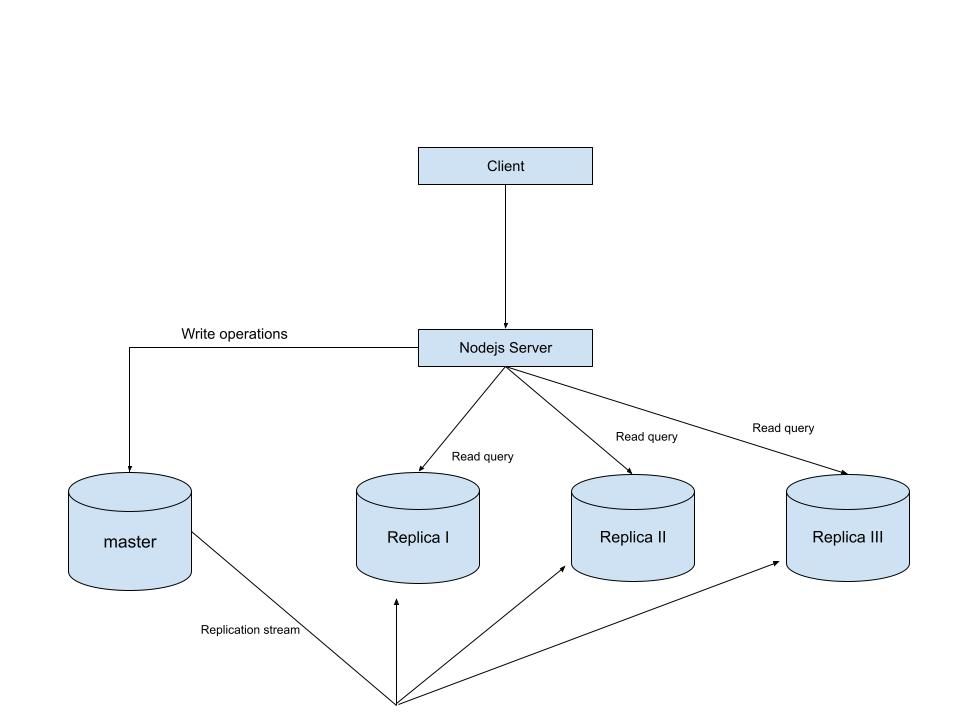
Modern applications demand high availability and the ability to scale reads without compromising performance. One of the most common strategies to achieve this is Replication. In this setup, we configured a single database to act as the leader (master) and handle all write operations, while three replicas handle read operations.

In this article, we’ll walk through how to set up MySQL single-leader replication on your local machine using Docker. Once the replication is working, we’ll connect it to a Node.js application using Sequelize ORM, so that reads are routed to the replica and writes go to the master. By the end, you’ll have a working environment where you can see replication in real time

Prerequisites

  • knowledge of database replication
  • Background knowledge of docker and docker compose
  • Background knowledge of Nodejs and how to run a NodeJS server

An Overview of what we are building

High level architecture of what we are building

Setup

  1. Setup our database servers on docker compose

    in the root of our project directory, create a file named docker-compose.yml with the following content to setup our mysql primary and replica databases.

    \ \

   name: "learn-replica"     volumes:      mysqlMasterDatabase:      mysqlSlaveDatabase:      mysqlSlaveDatabaseII:      mysqlSlaveDatabaseIII:     networks:      mysql-replication-network:      services:      mysql-master:         image: mysql:latest         container_name: mysql-master         command: --server-id=1 --log-bin=ON           environment:            MYSQL_ROOT_PASSWORD: master            MYSQL_DATABASE: replicaDb         ports:           - "3306:3306"         volumes:          - mysqlMasterDatabase:/var/lib/mysql         networks:          - mysql-replication-network       mysql-slave:         image: mysql:latest         container_name: mysql-slave         command: --server-id=2 --log-bin=ON          environment:            MYSQL_ROOT_PASSWORD: slave            MYSQL_DATABASE: replicaDb            MYSQL_ROOT_HOST: "%"         ports:           - "3307:3306"         volumes:          - mysqlSlaveDatabase:/var/lib/mysql         depends_on:           - mysql-master         networks:          - mysql-replication-network      mysql-slaveII:         image: mysql:latest         container_name: mysql-slaveII         command: --server-id=2 --log-bin=ON          environment:            MYSQL_ROOT_PASSWORD: slave            MYSQL_DATABASE: replicaDb            MYSQL_ROOT_HOST: "%"         ports:           - "3308:3306"         volumes:          - mysqlSlaveDatabaseII:/var/lib/mysql         depends_on:           - mysql-master         networks:          - mysql-replication-network        mysql-slaveIII:         image: mysql:latest         container_name: mysql-slaveIII         command: --server-id=3 --log-bin=ON          environment:            MYSQL_ROOT_PASSWORD: slave            MYSQL_DATABASE: replicaDb            MYSQL_ROOT_HOST: "%"         ports:           - "3309:3306"         volumes:          - mysqlSlaveDatabaseIII:/var/lib/mysql         depends_on:           - mysql-master         networks:          - mysql-replication-network 

In this setup, I’m creating a master database container called mysql-master and 3 replica containers called mysql-slave, mysql-slaveII and mysql-slaveIII. I won’t go too deep into the docker-compose.yml file since it’s just a basic setup, but I do want to walk you through the command line instructions used in all four services because that’s where things get interesting.

\

   command: --server-id=1 --log-bin=ON 

The --server-id option gives each MySQL server in your replication setup its own name tag. Each one has to be unique and without it, replication won’t work at all.

Another cool option not included here is binlog_format=ROW. This tells MySQL how to keep track of changes before passing them along to the replicas. By default, MySQL already uses row-based replication, but you can explicitly set it to ROW to be sure or switch it to STATEMENT if you’d rather log the actual SQL statements instead of row-by-row changes.

\

  1. Run our containers on docker

    Now, in the terminal, we can run the following command to spin up our database containers:

    docker-compose up -d

    \

  2. Setting Up Our Master (Primary) Server

  3. To configure our master server, we would have to first access the running instance on docker using the following command

    docker exec -it mysql-master bash

    This command opens an interactive Bash shell inside the running Docker container named mysql-master, allowing us to run commands directly inside that container.

    \

  4. Now that we’re inside the container, we can access the MySQL server and start running commands.

    type:

      mysql -uroot -p 

    This will log you into MySQL as the root user. You’ll be prompted to enter the password you set in your docker-compose.yml file.

    \

  5. Next, we need to create a special user that our replicas will use to connect to the master server and pull data. Inside the MySQL prompt, run the following commands:

    \

   CREATE USER 'repl_user'@'%' IDENTIFIED BY 'replication_pass';      GRANT REPLICATION SLAVE ON *.* TO 'repl_user'@'%';      FLUSH PRIVILEGES; 

Here’s what’s happening:

  • CREATE USER makes a new MySQL user called repl_user with the password replication_pass.

  • GRANT REPLICATION SLAVE gives this user permission to act as a replication client.

  • FLUSH PRIVILEGES tells MySQL to reload the user permissions so they take effect immediately.

    \

  1. Time to Configure the Replica (Secondary) Servers

    a. First, let’s access the replica containers the same way we did with the master. Run this command in your terminal for each of the replica containers:

    \

   docker exec -it <replica_container_name> bash    mysql -uroot -p 

<replica_container_name> should be replace with the name of the replica container you are trying to setup

b. Now it’s time to tell our replica where to get its data from. While inside the replica’s MySQL shell, run the following command to configure replication using the master’s details:

 CHANGE REPLICATION SOURCE TO   SOURCE_HOST='mysql-master',   SOURCE_USER='repl_user',   SOURCE_PASSWORD='replication_pass',   GET_SOURCE_PUBLIC_KEY=1; 

With the replication settings in place, let’s fire up the replica and get it syncing with the master. Still inside the MySQL shell on the replica, run:

START REPLICA; 

This starts the replication process. To make sure everything is working, check the replica’s status with:

\

SHOW REPLICA STATUS\G; 

Look for Replica_IO_Running and Replica_SQL_Running — if both say Yes, congratulations! 🎉 Your replica is now successfully connected to the master and replicating data in real time.

\

Testing Our Replication Setup from the Node.js App

Now that our replication is successfully set up, we can configure our Node.js server to observe the real-time effect of data being replicated from the master server to the replica server whenever we write to it.

We start by installing the following dependencies:

\

npm i express mysql2 sequelize 

\ Now create a folder called src in the root directory and add the following files inside that folder connection.js, index.js and model.js. Our current directory should look like this
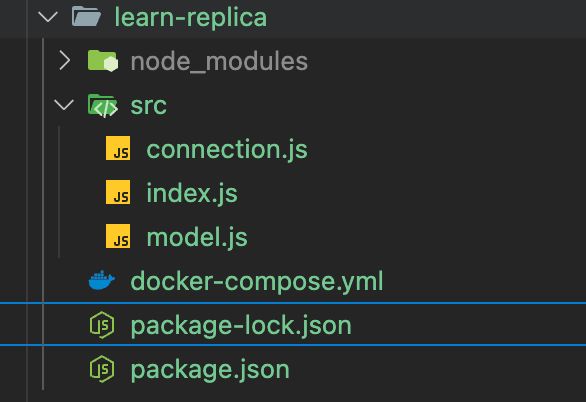
Our current project directory

We can now set up our connections to our master and replica server in the connection.js file as shown below

\

const Sequelize = require("sequelize");  const sequelize = new Sequelize({   dialect: "mysql",   replication: {     write: {       host: "127.0.0.1",       username: "root",       password: "master",       database: "replicaDb",     },     read: [       {         host: "127.0.0.1",         username: "root",         password: "slave",         database: "replicaDb",         port: 3307       },      {         host: "127.0.0.1",         username: "root",         password: "slave",         database: "replicaDb",         port: 3308       },        {         host: "127.0.0.1",         username: "root",         password: "slave",         database: "replicaDb",         port: 3309       },     ],   },  });  async function connectdb() {   try {     await sequelize.authenticate();   } catch (error) {     console.error("❌ unable to connect to the follower database", error);   } }  connectdb();  module.exports = {   sequelize, }; 

\ We can now create a User table in the model.js file

\

const {DataTypes} = require("sequelize"); const { sequelize } = require("./connection");  const User = sequelize.define("User", {   name: {     type: DataTypes.STRING,     allowNull: false,   },   email: {     type: DataTypes.STRING,     unique: true,     allowNull: false,   }, });  module.exports = User 

\ and finally in our index.js file we can start our server and listen for connections on port 3000. from the code sample below, all inserts or updates will be routed by sequelize to the master server. while all read queries will be routed to the read replicas.

\

const express = require("express"); const { sequelize } = require("./connection"); const User = require("./model");  const app = express();  app.use(express.json());  async function main() {   await sequelize.sync({ alter: true });    app.get("/", (req, res) => {     res.status(200).json({       message: "first step to setting server up",     });   });    app.post("/user", async (req, res) => {     const { email, name } = req.body;      let newUser = await User.build({       name,       email,     });      // This INSERT will go to the write (master) connection     newUser = newUser.save({ returning: false });      res.status(201).json({       message: "User successfully created",     });   });    app.get("/user", async (req, res) => {     // This SELECT query will go to one of the read replicas     const users = await User.findAll();      res.status(200).json(users);   });    app.listen(3000, () => {     console.log("server has connected");   }); }  main(); 

When you make a POST request to the /users endpoint, take a moment to check both the master and replica servers to observe how data is replicated in real time. Right now, we are relying on Sequelize to automatically route requests, which works for development but isn’t robust enough for a production environment. In particular, if the master node goes down, Sequelize cannot automatically redirect requests to a newly elected leader.

In the next part of this series, we’ll explore strategies to handle these challenges.

Piyasa Fırsatı
NODE Logosu
NODE Fiyatı(NODE)
$0.0149
$0.0149$0.0149
-0.53%
USD
NODE (NODE) Canlı Fiyat Grafiği
Sorumluluk Reddi: Bu sitede yeniden yayınlanan makaleler, halka açık platformlardan alınmıştır ve yalnızca bilgilendirme amaçlıdır. MEXC'nin görüşlerini yansıtmayabilir. Tüm hakları telif sahiplerine aittir. Herhangi bir içeriğin üçüncü taraf haklarını ihlal ettiğini düşünüyorsanız, kaldırılması için lütfen [email protected] ile iletişime geçin. MEXC, içeriğin doğruluğu, eksiksizliği veya güncelliği konusunda hiçbir garanti vermez ve sağlanan bilgilere dayalı olarak alınan herhangi bir eylemden sorumlu değildir. İçerik, finansal, yasal veya diğer profesyonel tavsiye niteliğinde değildir ve MEXC tarafından bir tavsiye veya onay olarak değerlendirilmemelidir.

Ayrıca Şunları da Beğenebilirsiniz

Ethereum Price Prediction: ETH Targets $10,000 In 2026 But Layer Brett Could Reach $1 From $0.0058

Ethereum Price Prediction: ETH Targets $10,000 In 2026 But Layer Brett Could Reach $1 From $0.0058

Ethereum price predictions are turning heads, with analysts suggesting ETH could climb to $10,000 by 2026 as institutional demand and network upgrades drive growth. While Ethereum remains a blue-chip asset, investors looking for sharper multiples are eyeing Layer Brett (LBRETT). Currently in presale at just $0.0058, the Ethereum Layer 2 meme coin is drawing huge [...] The post Ethereum Price Prediction: ETH Targets $10,000 In 2026 But Layer Brett Could Reach $1 From $0.0058 appeared first on Blockonomi.
Paylaş
Blockonomi2025/09/17 23:45
Will XRP Price Increase In September 2025?

Will XRP Price Increase In September 2025?

Ripple XRP is a cryptocurrency that primarily focuses on building a decentralised payments network to facilitate low-cost and cross-border transactions. It’s a native digital currency of the Ripple network, which works as a blockchain called the XRP Ledger (XRPL). It utilised a shared, distributed ledger to track account balances and transactions. What Do XRP Charts Reveal? […]
Paylaş
Tronweekly2025/09/18 00:00
Vitalik Buterin Reveals Ethereum’s Bold Plan to Stay Quantum-Secure and Simple!

Vitalik Buterin Reveals Ethereum’s Bold Plan to Stay Quantum-Secure and Simple!

Buterin unveils Ethereum’s strategy to tackle quantum security challenges ahead. Ethereum focuses on simplifying architecture while boosting security for users. Ethereum’s market stability grows as Buterin’s roadmap gains investor confidence. Ethereum founder Vitalik Buterin has unveiled his long-term vision for the blockchain, focusing on making Ethereum quantum-secure while maintaining its simplicity for users. Buterin presented his roadmap at the Japanese Developer Conference, and splits the future of Ethereum into three phases: short-term, mid-term, and long-term. Buterin’s most ambitious goal for Ethereum is to safeguard the blockchain against the threats posed by quantum computing.  The danger of such future developments is that the future may call into question the cryptographic security of most blockchain systems, and Ethereum will be able to remain ahead thanks to more sophisticated mathematical techniques to ensure the safety and integrity of its protocols. Buterin is committed to ensuring that Ethereum evolves in a way that not only meets today’s security challenges but also prepares for the unknowns of tomorrow. Also Read: Ethereum Giant The Ether Machine Takes Major Step Toward Going Public! However, in spite of such high ambitions, Buterin insisted that Ethereum also needed to simplify its architecture. An important aspect of this vision is to remove unnecessary complexity and make Ethereum more accessible and maintainable without losing its strong security capabilities. Security and simplicity form the core of Buterin’s strategy, as they guarantee that the users of Ethereum experience both security and smooth processes. Focus on Speed and Efficiency in the Short-Term In the short term, Buterin aims to enhance Ethereum’s transaction efficiency, a crucial step toward improving scalability and reducing transaction costs. These advantages are attributed to the fact that, within the mid-term, Ethereum is planning to enhance the speed of transactions in layer-2 networks. According to Butterin, this is part of Ethereum’s expansion, particularly because there is still more need to use blockchain technology to date. The other important aspect of Ethereum’s development is the layer-2 solutions. Buterin supports an approach in which the layer-2 networks are dependent on layer-1 to perform some essential tasks like data security, proof, and censorship resistance. This will enable the layer-2 systems of Ethereum to be concerned with verifying and sequencing transactions, which will improve the overall speed and efficiency of the network. Ethereum’s Market Stability Reflects Confidence in Long-Term Strategy Ethereum’s market performance has remained solid, with the cryptocurrency holding steady above $4,000. Currently priced at $4,492.15, Ethereum has experienced a slight 0.93% increase over the last 24 hours, while its trading volume surged by 8.72%, reaching $34.14 billion. These figures point to growing investor confidence in Ethereum’s long-term vision. The crypto community remains optimistic about Ethereum’s future, with many predicting the price could rise to $5,500 by mid-October. Buterin’s clear, forward-thinking strategy continues to build trust in Ethereum as one of the most secure and scalable blockchain platforms in the market. Also Read: Whales Dump 200 Million XRP in Just 2 Weeks – Is XRP’s Price on the Verge of Collapse? The post Vitalik Buterin Reveals Ethereum’s Bold Plan to Stay Quantum-Secure and Simple! appeared first on 36Crypto.
Paylaş
Coinstats2025/09/18 01:22